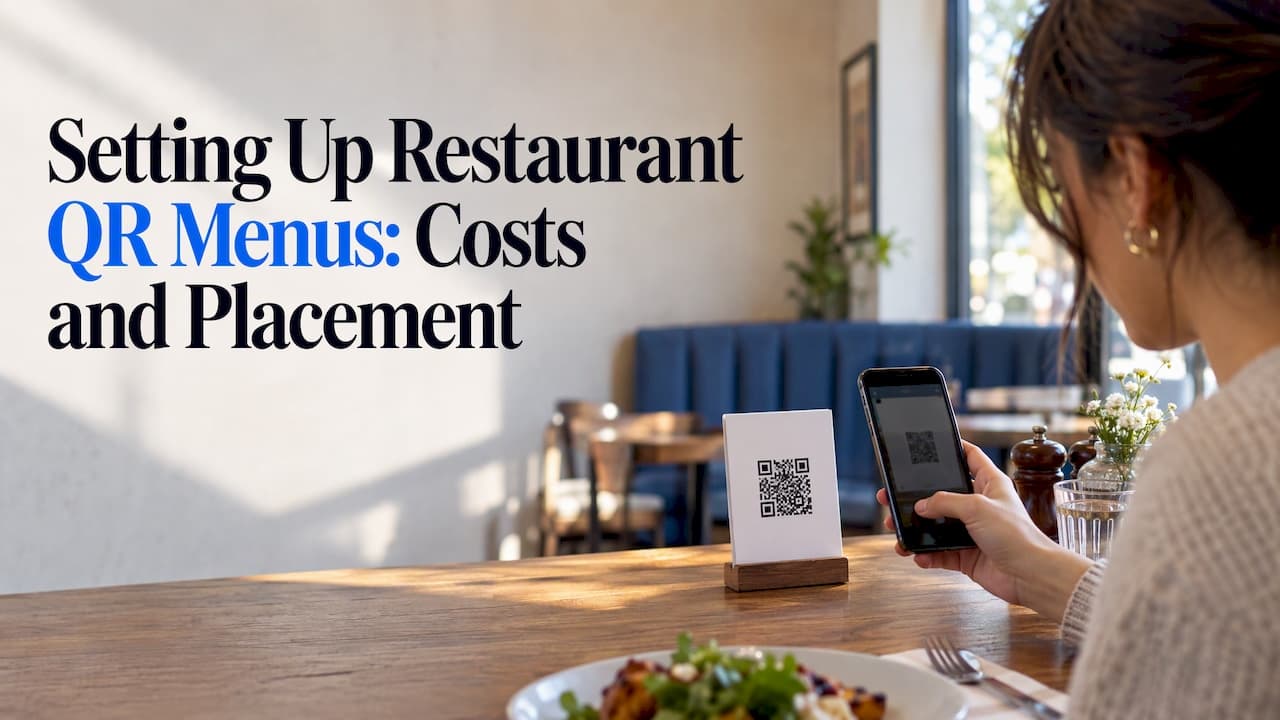
A QR menu for a restaurant is a scannable code that opens your menu on a guest's phone. The code only holds a web address. The menu itself lives on a page you control, so the quality of that page matters as much as the code. To set one up, choose where the menu lives, tidy it for mobile, generate the code, put it on durable signage, test it on real phones, and keep a paper menu available for guests who want one. This guide walks through each step with the numbers and trade-offs an owner needs.
TL;DR
- A QR menu is a link in a square. The code supplies the URL, and the menu page decides speed, readability and whether guests can order or pay.
- Use a stable or dynamic destination so you can change prices and items without reprinting anything.
- Size and place codes for real use: about 1.25 to 1.5 inches for table items, a short URL printed underneath as a fallback, and tests on several phones in your own lighting.
- Keep printed menus available. A national survey reported by Toast found many guests still prefer paper.
- Durable NFC and QR menu cards let guests tap or scan. Ours start at $1.74 per card, with no monthly subscription.
Table of Contents
- What a QR menu is and how guests use it
- How to set up a QR menu, step by step
- Where to put QR codes and how to size them
- What a QR menu costs
- Keep it accessible and current
- Should you still offer printed menus?
- Our perspective
- Put menu cards on your tables
- FAQ
- Sources
What a QR menu is and how guests use it
A diner sits down, points the phone camera at a code on the table, taps the link that appears, and the menu opens in the browser. No app download is needed. Otter explains that the code is a shortcut to a URL and the menu is an ordinary web page.
That design has a useful consequence. The QR technology and the menu design are separate things. The code is just the doorway. Load speed, mobile formatting, readable text, ordering and payment all depend on the page behind it. A beautiful printed code pointing at a slow, hard-to-read PDF still gives guests a bad experience.
A digital menu can also do things paper cannot. Toast notes that digital menus can include item images and detailed descriptions. They can also be updated: mark an item unavailable, change a price, or switch from lunch to dinner without reprinting.
QR menu, QR ordering and QR payment are different things
People use "QR menu" loosely, and it helps to separate three levels:
| Level | What the guest can do | What you need behind it |
|---|---|---|
| QR menu (view only) | Read the menu, then order from staff | A web page or PDF |
| QR ordering | Pick items and send the order to the kitchen | An ordering tool, often tied to a POS, kitchen printer or display |
| QR payment | Pay the check from the phone | A payment-enabled system |
Products can combine these, but a view-only menu does not automatically include ordering, payment or kitchen routing. Toast's own support documentation shows the split: guests scan to view the menu, then separately scan a receipt or table code to pay the check.
For many independent restaurants, cafes and food trucks, the view-only level is the right start. You get a clean, current menu in guests' hands, staff keep taking orders the way they always have, and you can add ordering later if the volume justifies it.
How to set up a QR menu, step by step
The process below follows the workflow that Adobe describes: choose where the menu lives, design it for mobile, generate the code, create signage, test, deploy, then measure and update.
1. Decide where the menu lives
The destination can be a mobile-friendly web page, a PDF or an ordering tool. The code is only the entry point. If you already have a website, a dedicated menu page there is often the simplest option, because you own the address and can edit the page whenever you like.
2. Make the menu work on a phone
A menu laid out for a printed page rarely reads well on a five-inch screen. Adobe recommends a single fast HTML page where possible, because it loads faster and works better with screen readers than a large PDF. If you must use a PDF, keep the file light and the text large.
Practical checks for the page:
- Clear sections (starters, mains, drinks, desserts) that guests can scan quickly.
- Text large enough to read without zooming and strong contrast against the background.
- Allergen and dietary notes next to the dishes they apply to.
- Prices that match what the register shows.
3. Generate the code from a stable address
This is the step owners most often get wrong. A static code bakes the exact address into the pattern. If the address changes, every printed code breaks. A dynamic code, or a stable URL you control that you can repoint, lets you change the destination later. Toast makes this point when it says a menu can be updated without reprinting when the code points to a dynamic destination.
With NFC, the same idea applies. A programmable tag stores a link, and you decide what that link is. Our cards are programmed with a direct link and need no app on the guest's phone.
4. Choose signage that survives a dining room
Paper tents get greasy, curl and tear. A code that is scuffed or smudged scans badly. Hard cards, acrylic tents and counter stands last longer and look more deliberate. More on options below.

5. Test before you print a hundred of them
Adobe recommends testing on multiple iOS and Android phones, over both Wi-Fi and cellular, in low light and glare, and checking that the menu loads quickly. Do this in your actual dining room at your actual dinner lighting, not at your desk. Ask a few staff members with older phones to try it.
6. Deploy, then keep it current
Place the signage, brief your servers on what to say when a guest asks about it, and make a habit of checking the live menu against the kitchen's reality each week. A QR menu that shows dishes you no longer serve is worse than paper, because guests trust the screen.
Where to put QR codes and how to size them
The best location is wherever a guest is already looking with a free hand. Common spots:
- Table tents, coasters or stands in the middle of the table.
- Bar toppers for guests who sit at the counter.
- Door or window posters so passers-by can read the menu before coming in.
- Check presenters, if you also link to a payment page or review page.
Adobe suggests roughly 1.25 to 1.5 inches for a code that guests hold a phone to at table distance, and 2 to 3 inches where guests scan from standing distance. Also print a short web address under the code as a fallback for guests whose camera does not pick it up.
Other rules that keep scanning reliable:
- High contrast. Dark code on a light background is safest. Avoid pale colors and busy photographic backgrounds.
- Quiet zone. Leave blank space around the code. Cutting it too tight is a common cause of failed scans.
- Flat, unlit-glare-free surface. Glossy finishes under spotlights bounce light back into the camera. Matte or properly angled placement helps.
- Reachable by everyone. The Red Dot Design Award's Beacon project identifies inconsistent placement and poor lighting as barriers for blind and low-vision diners. Put codes in the same predictable spot on every table and keep that spot well lit.
NFC and QR together
Some guests prefer to tap, others to scan. A card that offers both gives each guest the method they are comfortable with. Our PVC NFC menu cards and acrylic NFC menu cards with adhesive are built for this kind of table or counter use. If you want a card to stand upright, a clear acrylic card base holder keeps it visible and easy to wipe.
What a QR menu costs
There are two separate costs: the signage and the menu page.

The page. A free generator can produce a static code that points to a PDF you host yourself. Hosted menu services typically charge a monthly fee, often with plan limits on languages, items, tables or orders. If you compare services, look at total cost rather than the headline price. Menubly's comparison warns that providers may cap orders, charge commissions, add payment-processing markups or place important features behind add-ons. Check those before you commit to anything that will be printed.
The signage. This is a one-time purchase. Our published prices per card or holder are:
| Item | Price |
|---|---|
| PVC NFC Menu Tap Cards | $1.74 per card |
| Acrylic NFC Menu Tap Cards with Adhesive | $3.57 per card |
| Clear Acrylic Card Base Holders | $3.00 per holder |
| White or Black NFC Google Review Counter Stand | $3.84 per stand |
There is no monthly subscription for the cards. If you want protection in transit, optional shipping protection is $3.99 one-off. Bulk order options exist for multi-table restaurants and for resellers who serve several clients. See the full product range for current details.
A worked example
Take a 20-table restaurant that wants one menu card per table plus two at the bar and one at the host stand. That is 23 cards. At $1.74 per PVC card, the cards come to $40.02. Choose the acrylic version at $3.57 instead and the total is $82.11. Add 23 clear acrylic holders at $3.00 each and you add $69.00. These are simple multiplications of the listed per-unit prices. Shipping and any bulk terms are separate, so check the product page when you order.
Keep it accessible and current
The menu page, not just the code, has to work for every guest. Toast's digital menu guide recommends checking text size, contrast, screen-reader compatibility, touch-target size, keyboard navigation and recovery from mistakes, on real phones.
A short checklist you can run in ten minutes:
- Open the menu on your own phone and zoom the text to 200%. Does the layout still work?
- Turn on the phone's built-in screen reader and try to move through one section.
- Check that prices and dish names are real text, not images of text.
- Switch the phone to cellular only and time how long the page takes to load.
- Look at it in bright light and in the dimmest corner of the room.
Image-only or scanned PDFs are a poor main destination, because screen readers cannot read them reliably. Real text with headings is better for everyone.
A QR menu that opens a web page also needs an internet connection. If your Wi-Fi is spotty or a guest has no signal, the menu will not load. Post a guest Wi-Fi name and password near the code, and keep paper on hand.
Should you still offer printed menus?
Yes. Toast reports that an Ipsos survey found 65% of Americans had used a QR menu in 2025, while 37% of users said they liked the experience and 58% wanted paper menus back. In plain terms: most guests have used one, and plenty would still rather hold paper.
The simplest approach is layers. QR for guests who like it, standard printed menus on request, and a large-print version on request for guests with low vision. The National Restaurant Association has spoken about matching technology to what guests prefer while keeping the human side of service. A QR menu works best as an option that helps servers, not a wall between them and the table.
Our perspective
We built TapStand around a simple observation: most independent restaurants do not need a heavy system to get a menu onto a guest's phone. They need a link that works, a card that looks good on the table, and the freedom to change what is behind it.
That is why our cards are programmable. You decide the destination, and you can point it somewhere else later without throwing away your signage. There is no app for guests to install and no monthly subscription for the cards. Our approach is to give you a durable physical piece, in NFC and QR formats, that does one job reliably.
We also think the menu page deserves more attention than the code. Spend your time on a fast, readable mobile page, and let a solid card or stand do the rest. For restaurants with international guests, our multilingual designs help you reach more of them.
Trent
Put menu cards on your tables
If you already have a menu page, or are about to build one, the cards are the easy part. Our PVC NFC menu tap cards cost $1.74 each, and the acrylic version with adhesive is $3.57 for a sturdier look on tables and counters.

You can pair them with a review card or counter stand so the same table prompts guests to find your menu and, later, leave a review. Browse the whole TapStand product range to see what fits your room. Resellers can also order in bulk for their own clients.
FAQ
Do I need an app for a restaurant QR menu?
No. Guests point the phone camera at the code, tap the link that appears, and the menu opens in the browser. Any app-like features, such as ordering, depend on the page you link to, not on a download.
Can I change my menu without reprinting the QR code?
Yes, if the code points to a stable or dynamic address that you control. You edit the page behind it, and the same printed code shows the new menu. With programmable NFC cards, the stored link can also be pointed somewhere new.
How big should the QR code be on a table?
Adobe suggests about 1.25 to 1.5 inches for codes guests scan at table distance, and 2 to 3 inches for scanning from standing distance. Leave blank space around the code, use high contrast, and print a short web address underneath as a backup.
Is a QR menu the same as QR ordering?
No. A QR menu shows the menu, and guests then order from staff. QR ordering lets guests choose items and send them to the kitchen, and QR payment lets them pay on the phone. Many restaurants start with the menu alone.
Should I keep paper menus?
Yes. Many guests still prefer paper, and some need large print. Keep standard and large-print menus available on request, and tell servers to offer them without making guests ask twice.
Sources
- QR Code Menus for Restaurants: How They Work, Otter
- How to Use QR Codes in Your Restaurant, Toast
- Get Started With Mobile Payments and Digital Menus, Toast Support
- How to make a QR code for a menu, Adobe
- Beacon, Red Dot Design Award
- 10 Best QR Code Menus for Restaurants (2026), Menubly
- How to Build a Digital Restaurant Menu, Toast